Imagine you have 50 or 100 test scenarios, and each starts with the same login flow. Open the app, type the username, type the password, and click "Sign In." Over and over again. You are losing time and creating unnecessary pressure on your authentication system.
Playwright has a built-in solution for this. It's called storage state, and it lets you authenticate once, save the session, and reuse it across all your tests. No more repeating login steps across scenarios.
Let's dive in.
What is Playwright storage state authentication?
When you log into a web application, the browser stores your authenticated session using cookies, local storage, or IndexedDB. Playwright's storageState() method captures that information and saves it to a JSON file. Then, every test that needs to be authenticated simply loads that file instead of going through the login flow again.
The result? Your tests start already logged in. No redundant steps.
Step 1: Create the auth setup file
First, you need a dedicated setup file that handles authentication. Create a file called auth.setup.ts in your tests directory.
import { test as setup } from '@playwright/test';const authFile = 'playwright/.auth/user.json';setup('authenticate', async ({ page }) => { await page.goto('/login'); await page.getByRole('textbox', { name: 'Email' }).fill('[email protected]'); await page.getByRole('textbox', { name: 'Password' }).fill('password123'); await page.getByRole('button', { name: 'Sign in' }).click(); await page.waitForResponse('**/api/tags'); await page.context().storageState({ path: authFile });});Notice the import. We're importing test but renaming it to setup. This is just a naming convention to make it clear this isn't a regular test.
The authFile constant defines where the session data will be stored. Playwright will create the playwright/.auth/ directory and the user.json file automatically when the setup runs.
At the end, page.context().storageState({ path: authFile }) saves the entire authenticated session into that JSON file. Cookies, local storage, all of it.
Step 2: Wait for the page to fully load
This is the step most tutorials skip, and it's the one that causes the most confusion.
You need to ensure your application is fully loaded before capturing the storage state. If you grab the session too early, you might save an incomplete or invalid state, and your tests will fail with authentication errors.
How do you know the page is fully loaded? It depends on your application. Here are a few approaches:
Wait for a URL change:
await page.waitForURL('/dashboard');Wait for a visible element:
await page.getByRole('heading', { name: 'Welcome' }).waitFor();Wait for an API response:
await page.waitForResponse('**/api/tags');In my example with the Conduit application, I use waitForResponse for the tags endpoint. When that request completes, it means the homepage is fully loaded and the authenticated session is ready to be captured.
Pick whichever method makes sense for your app. Just don't skip this step.
Step 3: Configure playwright.config.ts
Now you need to tell Playwright two things: run the setup file first, and use the saved storage state for all tests.
Open your playwright.config.ts and configure the projects section:
import { defineConfig } from '@playwright/test';export default defineConfig({ projects: [ { name: 'setup', testMatch: /auth\.setup\.ts/, }, { name: 'chromium', use: { ...devices['Desktop Chrome'], storageState: 'playwright/.auth/user.json', }, dependencies: ['setup'], }, ],});The setup project matches only the auth.setup.ts file. It runs first and generates the user.json session file.
The chromium project has two important additions. The storageState property tells Playwright to load the saved session before every test. The dependencies array makes sure the setup project completes before this one starts.
That's it for the config. Setup runs first, creates the session file, and then every test in the chromium project starts already authenticated.
Step 4: Simplify your tests
Here's the best part. Go back to your test files and remove all those login steps. Your tests no longer need them.
Before:
test('create article', async ({ page }) => { await page.goto('/login'); await page.getByRole('textbox', { name: 'Email' }).fill('[email protected]'); await page.getByRole('textbox', { name: 'Password' }).fill('password123'); await page.getByRole('button', { name: 'Sign in' }).click(); // actual test steps... await page.getByText('New Article').click(); // ...});After:
test('create article', async ({ page }) => { await page.goto('/'); // actual test steps - already authenticated! await page.getByText('New Article').click(); // ...});Did you notice how much cleaner that is? No login steps, no repeated code. Just open the app and you're already signed in because the storage state is loaded automatically from the config.
Running the tests
When you run your tests, watch the execution order. The auth.setup.ts file executes first. You'll see it log in, save the session, and complete. Then your actual tests run, already authenticated.
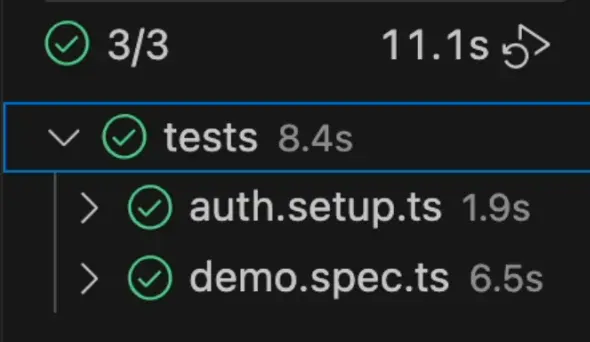
After the first run, you'll notice a new file: playwright/.auth/user.json. This is the storage state that Playwright captured. It contains cookies, local storage data, and whatever other session information your application uses.
The playwright figures out the file's structure on their own. Whether your app uses a simple JWT token, Auth0, Okta, or another authentication provider, Playwright will capture whatever the browser stores. You don't need to manually configure what gets saved.
Don't forget the .gitignore
The user.json file contains sensitive information like access tokens and session cookies. Do not commit this file to your repository.
Add it to your .gitignore:
# Playwright auth stateplaywright/.auth/Those tokens should not be publicly available in your repos. Especially if your repository is public or shared with a team.
Final Thoughts
Playwright storage state authentication takes five minutes to set up and saves you hours of test execution time. Authenticate once, reuse everywhere. Your tests become faster and less flaky.
The key is to wait for the page to fully load before capturing the state. This is the most common mistake I see, and it's the easiest to fix.
If you want to learn more about Playwright authentication patterns, check out the official Playwright authentication docs.
Microsoft Playwright is growing in popularity on the market very quickly and will soon be a mainstream framework. Get the new skills at Bondar Academy with the Playwright UI Testing Mastery program. Start from scratch and become an expert to increase your value on the market!
Frequently Asked Questions
What does Playwright storage state save exactly?
Playwright's storageState() method saves cookies, local storage, and origin information from the browser context into a JSON file. This captures your entire authenticated session so it can be reloaded in other tests.
Do I need to re-authenticate every time I run the tests?
Yes, the auth.setup.ts runs before each test run to generate a fresh storage state. This way, your tokens are always valid and not expired.
Can I use storage state with multiple user roles?
Yes. Create separate setup files for each role, for example admin.setup.ts and user.setup.ts, each saving to a different JSON file. Then configure separate projects in playwright.config.ts with different storageState paths and dependencies.
Does storage state work with Auth0, Okta, or other SSO providers?
Yes. Playwright captures whatever the browser stores after authentication, regardless of the provider. As long as your login flow completes in the browser and results in stored cookies or tokens, storageState() will capture it.
Should I commit the user.json file to my repository?
No. The storage state file contains sensitive session data like access tokens. Add playwright/.auth/ to your .gitignore to prevent accidentally exposing credentials.
Why are my tests failing even after setting up storage state?
The most common cause is capturing the storage state before the page is fully loaded. Make sure you wait for a URL change, a visible element, or an API response before calling storageState(). If the session is captured too early, it may be incomplete or invalid.