If your Playwright tests pass on one run and fail on the next, you are not alone. Flaky tests are one of the most frustrating problems in test automation. They waste your time and make your CI pipeline unreliable.
Most flaky Playwright tests fail for one of three reasons. Once you know what to look for, the fixes are straightforward. I am going to show you each cause with real examples, explain why it happens, and give you the exact code to fix it. Let's dive in.
What Are Flaky Tests?
A flaky test is a test that produces inconsistent results without any changes to the code. You run it once, it passes. You run it again, it fails. Nothing changed. The test is just unreliable.
Flaky tests are dangerous because they train your team to ignore failures. When a test fails randomly often enough, people stop investigating. And then a real bug slips through because everyone assumed "it's just that flaky test again."
In CI pipelines, flaky tests are even worse. They block pull requests and waste developer time on investigations that lead nowhere. A test suite full of flaky tests is worse than no test suite at all, because it gives you false confidence.
So how to fix Playwright flaky tests? Let's break down the three most common causes.
Reason 1: Playwright Runs Faster Than Your Application
This is the most common cause of flaky Playwright tests, and the trickiest to understand. Playwright executes your test script faster than your application can update its state. Your test ends up interacting with stale data.
Let me show you a real example.
The Problem
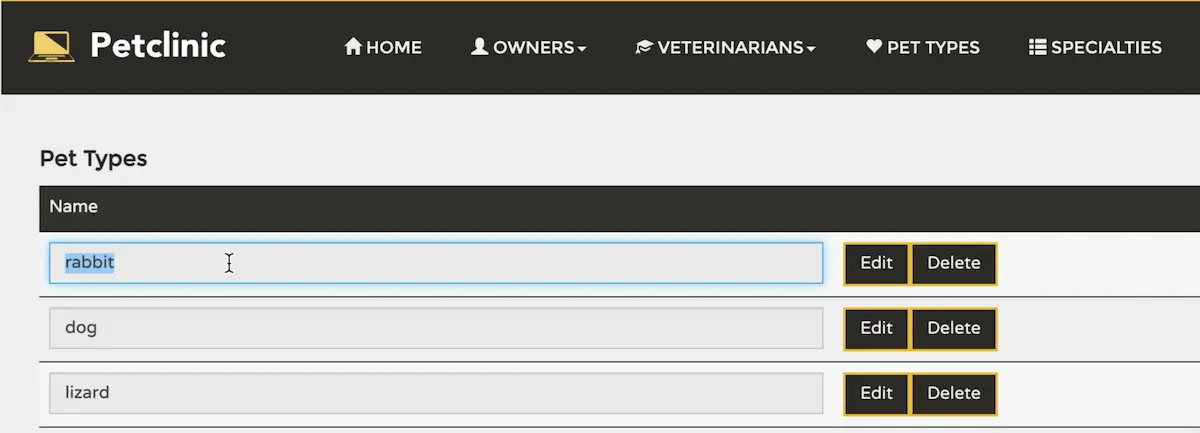
Here is a test using a PetClinic application. The scenario is simple: navigate to the Pet Types page, click Edit on the first pet, change the name to "rabbit", click Update, and verify the value was updated.
await page.getByRole('link', { name: 'Pet Types' }).click();await page.getByRole('button', { name: 'Edit' }).first().click();await page.getByRole('textbox').fill('rabbit');await page.getByRole('button', { name: 'Update' }).click();await expect(page.locator('[id="0"]')).toHaveValue('rabbit');Looks correct, right? But when you run this test, it fails. The assertion shows "cat" instead of "rabbit". The value was never updated.
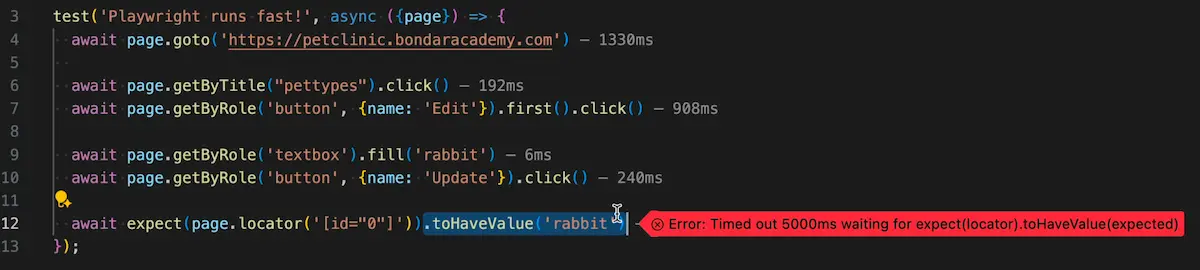
Why?
When you click the Edit button, the page opens an input field. Behind the scenes, an API call fetches the current pet name ("cat") to populate that field. But Playwright doesn't know about that API call. It sees the input field is available and immediately fills it with "rabbit".
Then the API response comes back. It overwrites "rabbit" with "cat" in the input field. Playwright already moved on, clicked Update, and now validates the value. It sees "cat" instead of "rabbit". Test fails.
You can find the demo of this flow in this video:
The tricky part? This test might pass 8 out of 10 times. On a fast machine, the API returns before Playwright fills the field. On a slower CI server, or under heavy load, the timing shifts and the test breaks. That is what makes it flaky. Not consistently failing, just unreliable.
How to Debug It
When a test fails and you can't figure out why, don't just stare at the code. Open the Playwright trace viewer.
Run your test with the --ui flag to open the Playwright UI runner:
npx playwright test --uiYou can step through each action and see snapshots of the page before and after every step. It's like watching your test in slow motion. Click through the steps one by one and look for moments where the page state changes unexpectedly between actions.
In our PetClinic example, here is what you would see:
Click Edit button. Before: empty.
Fill "rabbit". Action: "rabbit" in the input. Looks fine.
Click Update. After: "cat" in the input. Wait, what?
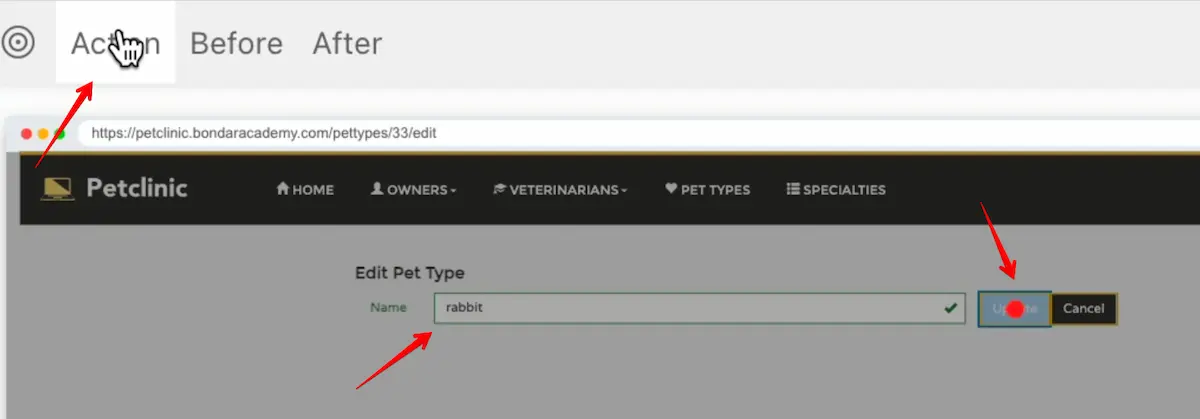
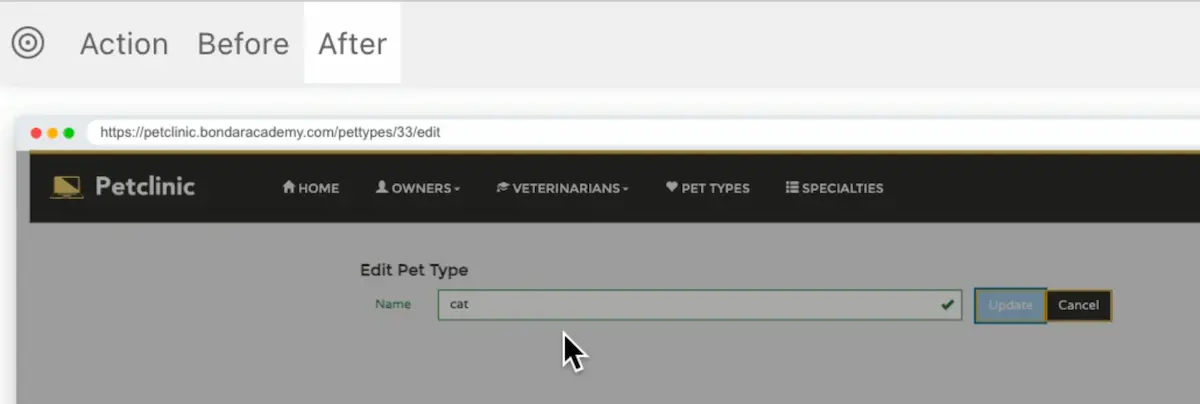
That is the moment you catch it. Between the fill and the click, the API response arrived and overwrote your value. Without the trace viewer, you would be guessing.
The networking tab is also useful here. You can see every API call, its timing, and its response. Sort by duration to spot slow responses that arrived after your test already moved past that step.
Fix 1: Use Locator Assertions to Synchronize State
The cleanest fix is to add a locator assertion before the action that depends on the application state. Locator assertions automatically retry until the condition is met or the timeout expires.
await page.getByRole('link', { name: 'Pet Types' }).click();await page.getByRole('button', { name: 'Edit' }).first().click();// Wait for the existing value to load before replacing itawait expect(inputField).toHaveValue('cat');await inputField.fill('rabbit');await page.getByRole('button', { name: 'Update' }).click();await expect(inputField).toHaveValue('rabbit');That one line, await expect(inputField).toHaveValue('cat'), synchronizes your test with the application state. Playwright will wait for the API to return the value "cat" before proceeding to fill "rabbit". In this example, the wait was only about 100 milliseconds, but without it, the test fails every time.
If you are not sure about the difference between locator assertions and generic assertions, check out my article on how to use Playwright expect assertions. There is a pretty important difference.
Fix 2: Wait for the API Response
If you don't know the exact data value to assert on, you can wait for the API response that populates the page state instead. Use Playwright's waitForResponse method:
await page.getByRole('link', { name: 'Pet Types' }).click();// Wait for the API call that loads pet dataawait page.getByRole('button', { name: 'Edit' }).first().click();await page.waitForResponse('**/api/pettypes/*');await inputField.fill('rabbit');await page.getByRole('button', { name: 'Update' }).click();await expect(inputField).toHaveValue('rabbit');This tells Playwright to wait until the specific API call completes before continuing. You can find the right URL by checking the networking tab in the trace viewer or your browser's DevTools.
Both fixes work. Use locator assertions when you know the expected value. Use waitForResponse when you need to wait for an API call but don't care about the specific data.
One more thing on this. When you see a flaky test that sometimes fails on assertions, always check if there is an async operation (API call, animation, WebSocket message) that could be changing the page state after Playwright has already acted. The networking tab in the trace viewer will show you exactly what happened and when.
Reason 2: Random API Delays Cause Timeouts
Here is a pattern you might recognize. Your test fails with a timeout error. But it doesn't fail consistently. Sometimes it crashes on step two, sometimes on step six, sometimes on step five. There is no pattern, and the error is always "timeout exceeded."
This usually means your application has API endpoints with unpredictable response times. On most runs, they respond in under a second. But occasionally, one endpoint takes 15 or 20 seconds, and that pushes your entire test past the configured timeout.
The default test timeout in Playwright is 30 seconds. If your test has 10 steps and each one normally takes 1-2 seconds, you have plenty of room. But if one API call suddenly takes 20 seconds, you have used up most of your timeout on a single step. The remaining steps don't have enough time to complete, and your test crashes with the dreaded timeout 30000ms exceeded error.
How to Identify Slow APIs
Open the Playwright trace viewer after a test execution. Go to the networking tab and sort API calls by duration. Look for outliers. If most calls take 200-500ms but one occasionally takes 10+ seconds, you have found your problem.
Run the test several times and compare. If you see the same endpoint spiking in duration across different runs, that is the source of your flakiness.
Fix: Use test.slow() and Mock Unstable Endpoints
Start by confirming that the timeout is actually the problem. Add test.slow() at the beginning of your test:
test('my flaky test', async ({ page }) => { test.slow(); // ... rest of your test});test.slow() multiplies your default timeout by three. If your test passes consistently with test.slow(), the timeout was the issue. Now you can optimize.
But test.slow() is a diagnostic tool, not a permanent solution. The actual fix? Mock the slow endpoint. Ask yourself: do you really need the real data from that endpoint, or can you use a static response?
From my experience, I once automated a test for an application that loaded a giant JSON file into browser local storage on every login. It took 30 to 40 seconds each time. It was a simple static file that never changed. Waiting for it on every test run was pointless. I mocked the endpoint, saved the file locally in my project, and the test ran in seconds instead of minutes.
await page.route('**/api/slow-endpoint', async (route) => { await route.fulfill({ status: 200, contentType: 'application/json', body: JSON.stringify(mockData), });});If you want to learn more about API testing and mocking in Playwright, check out the Playwright API Testing Mastery program at Bondar Academy.
So the approach is: add test.slow() to confirm the timeout is the problem, then open the trace viewer networking tab and find the slow API endpoint. Check if the endpoint returns data that can be mocked with a static response. If yes, use page.route() to mock it.
If the endpoint cannot be mocked because your test depends on its real response, adjust your timeout configuration for that specific test instead. You can set a longer timeout on individual tests without affecting the rest of your suite:
test('test with slow API', async ({ page }) => { test.setTimeout(60000); // 60 seconds for this test only // ... rest of your test});Reason 3: Fragile Locators
Playwright supports XPath locators. But if you are still using XPath with absolute paths, that is one of the reasons your tests are flaky.
The problem is simple. The longer your selector, the more likely it is to break when the DOM changes. A deeply nested XPath like this is a ticking time bomb:
// Don't do thisawait page.locator('//div[@class="main"]/div[2]/table/tbody/tr[1]/td[3]/button').click();Even long CSS selectors with multiple nodes have the same problem:
// This is also fragileawait page.locator('div.main > div:nth-child(2) > table > tbody > tr:first-child > td:nth-child(3) > button').click();A developer adds a wrapper div for styling, and suddenly five of your tests fail. Not because anything is actually broken, but because your locators were too tightly coupled to the DOM structure. UI changes happen all the time. Your locators shouldn't break because of them.
Fix: Use User-Facing Locators
Playwright provides built-in locators that target elements the way a real user sees them:
// Do this insteadawait page.getByRole('button', { name: 'Edit' }).first().click();await page.getByRole('textbox', { name: 'Pet name' }).fill('rabbit');await page.getByRole('button', { name: 'Update' }).click();The shorter your locator, the more stable it will be. Methods like getByRole(), getByText(), getByLabel(), and getByTitle() target user-visible attributes, not internal structure. They keep working even if the developers restructure the entire page layout. As long as the button still says "Edit", your test passes.
Approach | Locator | Stability |
|---|---|---|
XPath (absolute) |
| Fragile |
CSS (multi-node) |
| Fragile |
User-facing |
| Stable |
One nice side effect: user-facing locators push you toward better accessibility. If you can't find an element using getByRole(), it might be because the element is missing proper ARIA attributes. Fixing the locator often means fixing the accessibility too.
If you need a refresher on Playwright's recommended locator strategies, read my article on Playwright locators best practices.
Final Thoughts
Most flaky Playwright tests come down to three things: race conditions with async operations, unpredictable API response times, and fragile locators. The fixes are not complicated once you understand the root cause. Use locator assertions to synchronize your test with the application state. Use test.slow() and mocking to handle slow APIs. Use user-facing locators instead of XPath and long CSS selectors.
If your tests are flaky, the problem is in the code, not in the framework. Playwright gives you all the tools to write stable tests. You just need to use them correctly.
I wish you to build the test suites in a way that the person who comes to the project after you will not say: "these tests are too flaky, we need to start from scratch" :)
Playwright is becoming a mainstream framework for UI and API automation. Become a professional test automation engineer with the Playwright UI Testing Mastery program. Practice assignments with code reviews on GitHub will help you build hands-on skills and a deep understanding of the framework!
Frequently Asked Questions
What is the most common cause of Playwright flaky tests?
Race conditions. Playwright executes faster than your application updates its state. The fix is to add locator assertions that wait for the expected application state before proceeding with the next action.
Should I use waitForTimeout to fix flaky tests?
No. Hard waits like waitForTimeout() are themselves a source of flakiness. They either wait too long (slowing your suite) or not long enough (still failing). Use locator assertions or waitForResponse instead. They wait for actual conditions, not arbitrary time.
How does test.slow() help with flaky Playwright tests?
test.slow() multiplies your default test timeout by three. It is a diagnostic tool, not a permanent fix. If a test passes with test.slow() but fails without it, the root cause is a timeout issue, likely from a slow API endpoint that you should mock.
Can XPath locators cause flaky tests in Playwright?
Yes. Long XPath expressions are tightly coupled to DOM structure. Any UI change can break them. Playwright recommends user-facing locators like getByRole() and getByText() that are shorter and more resilient to DOM changes.
How do I debug flaky Playwright tests?
Use the Playwright trace viewer. Run your test with --ui flag or configure traces on failure. The trace viewer shows page snapshots before and after each action, plus network activity. Sort API calls by duration to find slow endpoints causing timeouts.