If you're transitioning from Cypress or Selenium to Playwright, you've probably noticed something unfamiliar - getByRole(). There is no such thing in Cypress or Selenium, and it can be confusing at first. But once you get the hang of it, you'll realize it's one of the best features Playwright has to offer.
Here's what the Playwright documentation says: "To make tests resilient, we recommend prioritizing user-visible attributes and explicit contracts such as getByRole()." In other words, this is the recommended way to locate web elements in Playwright.
Let's dive in.
What is getByRole() in Playwright?
The "role" in getByRole() refers to ARIA roles - attributes that assistive technologies use to read and navigate web applications. People who rely on screen readers use these roles to click buttons, navigate menus, fill out forms, and interact with the page.
Playwright taps into this same accessibility layer. When you use getByRole(), you're locating elements the way a real user would. That's why these locators are so resilient.
The basic syntax looks like this:
page.getByRole('role', { name: 'visible text' })You provide the role of the element (button, link, textbox, etc.) and the name, which is usually the visible text label associated with that element. Together, these two pieces create a locator that is both unique and easy to read.
The Only Roles You Actually Need
When you open page.getByRole() in VS Code and look at the available roles, you'll see a long list - alert, alertdialog, application, article, and so on. It's quite a big list.
Honestly, you don't need all of those. In typical automation scenarios, you will use 5 or 6 roles. Here are the ones that matter:
Role | HTML Element | Use Case |
|---|---|---|
|
| Click buttons, submit forms |
|
| Fill input fields |
|
| Click hyperlinks and navigation items |
|
| Check or uncheck checkboxes |
|
| Select radio buttons |
|
| Assert page headers |
|
| Target rows in web tables |
|
| Target cells in web tables |
|
| Interact with list items |
That's it. Nine roles that cover the vast majority of your test automation needs. The button role alone will probably account for half of your getByRole() usage because buttons are everywhere in web applications.
How to Make getByRole() Unique with the Name Option
A role by itself is not unique. If you just write page.getByRole('button'), you'll likely match dozens of buttons on the page.
The key is the name option - the visible text associated with the element. Using both role and name together creates a resilient, reliable locator.
// Role alone - too broad, matches every buttonpage.getByRole('button')// Role + name — specific and readablepage.getByRole('button', { name: 'Send' })Where does the "name" come from? It's the accessible name of the element, which typically maps to:
The text content of buttons and links
The label or placeholder of input fields
The text of checkboxes and radio buttons
This is the core concept. Once you understand that getByRole() = role + visible text, everything else falls into place.
Practical getByRole() Examples in Playwright
Let's walk through real examples covering the most common roles. These are the patterns you'll use every day.
Clicking a Link
Say you want to click a "Forms" navigation menu item. Inspect it - it's a <a> tag. Anchor means link.
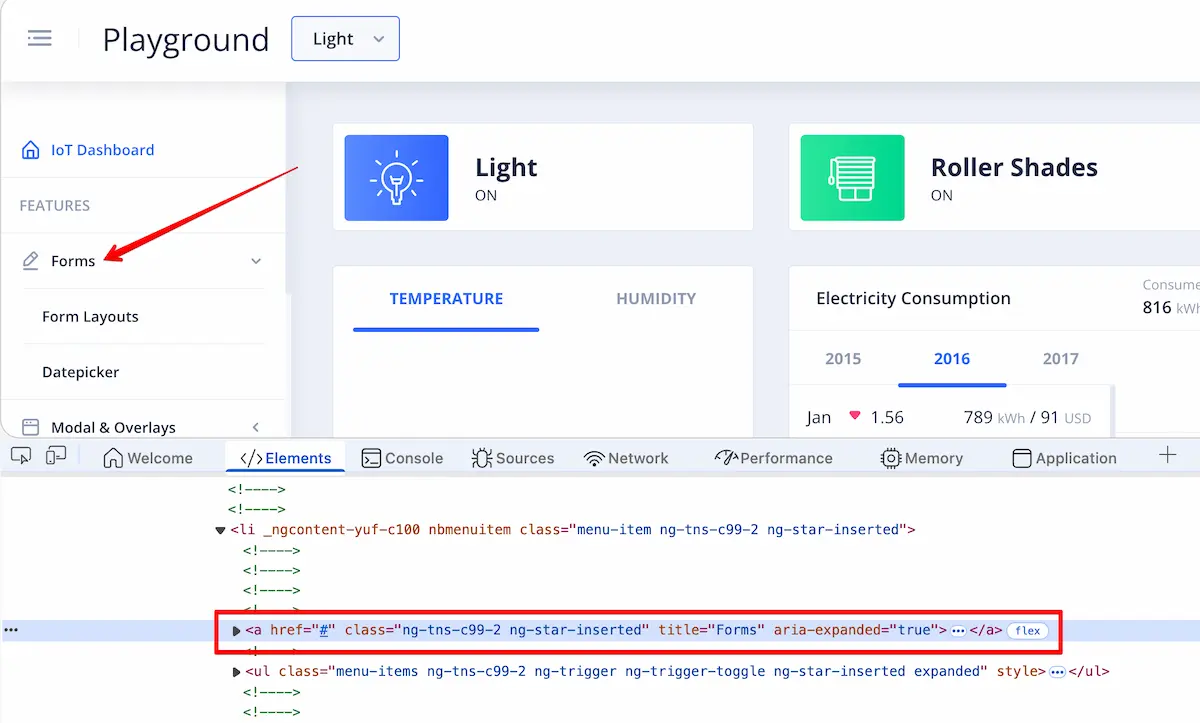
await page.getByRole('link', { name: 'Forms' }).click();Need to click a second link, "Form Layouts"? Same pattern:
await page.getByRole('link', { name: 'Form Layouts' }).click();Simple and readable. You can tell exactly what this code does just by looking at it.
Checking a Checkbox
To interact with a checkbox labeled "Check me out":
await page.getByRole('checkbox', { name: 'Check me out' }).check();Notice we use .check() instead of .click() for checkboxes. This is the Playwright way - .check() won't uncheck the box if it's already checked. Much safer for your tests.
Filling an Input Field
For input fields, use the textbox role. The name comes from the field's label or placeholder text. If the placeholder says "Recipients":
await page.getByRole('textbox', { name: 'Recipients' }).fill('John Smith');If you want to learn more about why you shouldn't force interactions, check out my article on the {force: true} flag.
Clicking a Button
Button is the most common role you'll use. Buttons are everywhere on every application.
await page.getByRole('button', { name: 'Send' }).click();That's it. Look at how clean and readable this is - button, Send, click. Even someone who has never seen Playwright before can understand what this test does. You don't need to extract locators like this to a constant. They are already self-descriptive.
Asserting a Heading
Need to verify a page heading? Use the heading role:
await expect(page.getByRole('heading', { name: 'Form Layouts' })).toBeVisible();You can also filter by heading level using the level option:
await expect(page.getByRole('heading', { name: 'Form Layouts', level: 1 })).toBeVisible();This targets only <h1> tags specifically. If you want to learn more about Playwright assertions, take a look at my guide on how to use Playwright expect assertions.
How to Chain getByRole() with Other Locators
Here's something powerful that many people miss - you can chain getByRole() with regular locators. This is useful when the page has multiple elements with the same role and name, and you need to narrow down to a specific section.
For example, find a form by its ID first, then locate an input field inside it:
await page.locator('#contactForm').getByRole('textbox', { name: 'Email' }).fill('[email protected]');Or the other way around - find a table using getByRole(), then locate specific content with a CSS selector:
const row = page.getByRole('row', { name: 'John Smith' });await row.locator('td').first().click();This chaining approach gives you the best of both worlds - the readability of getByRole() combined with the precision of CSS selectors when you need it.
When NOT to Use getByRole()
getByRole() is great, but it's not the right tool for every situation. Knowing when to skip it is just as important as knowing how to use it.
Icons without text. If you need to click an icon that has no visible text or ARIA label, getByRole() won't help. You'll need a CSS selector or test ID.
Dynamic dropdowns. Suppose you have a dropdown currently showing "Light" as its value. You could use page.getByRole('button', { name: 'Light' }), but now your locator is tied to the current test data. If the value changes to "Dark," your test breaks. In this case, use a CSS selector that targets the dropdown by its structure, not its displayed value.
Non-unique text. If the same button text appears multiple times on the page (like multiple "Delete" buttons in a list), getByRole() alone won't be specific enough. Chain it with a parent locator or use a different locator strategy.
The rule of thumb: if the element has static, visible text that uniquely identifies it - use getByRole(). Otherwise, reach for regular locators.
getByRole() vs Other Playwright Locators
Playwright gives you several locator methods. Here's when to use each:
Locator | Best For | Example |
|---|---|---|
| Interactive elements with visible text |
|
| Static text content, paragraphs, labels |
|
| Form inputs by their |
|
| Inputs by placeholder text |
|
| Elements with |
|
| CSS when nothing else works |
|
getByRole() should be your first choice for interactive elements. Fall back to other methods only when getByRole() doesn't fit the situation. This approach aligns with the Playwright documentation's own recommendation.
Best Practices for Using getByRole() in Playwright
1. Always provide the name option. A role without a name is like a CSS class without specificity - it matches too many things. Always pair the role with visible text.
2. Use proper HTML in your application. getByRole() works best when your app uses semantic HTML - <button> instead of <div onclick>, <a> instead of <span> with a click handler. If your developers write proper HTML, your tests almost write themselves.
3. Prefer role-specific methods over .click(). Use .check() for checkboxes, .fill() for textboxes, .selectOption() for dropdowns. These methods are safer and more expressive than calling .click() on everything.
4. Use the exact option for precise matching. By default, the name matching is case-insensitive and looks for a substring. If you need an exact match:
page.getByRole('button', { name: 'Send', exact: true })This prevents accidentally matching a button labeled "Send Email" when you wanted "Send."
Final Thoughts
getByRole() makes your tests more resilient, more stable, and easier to read. Once you start using it, you'll wonder how you ever lived without it. The learning curve is short - experiment with the handful of roles that matter, and you'll be writing clean, readable locators in no time.
If you're coming from Cypress or Selenium, think of getByRole() as an upgrade. Instead of hunting for CSS selectors or XPaths that break every time the UI changes, you're targeting elements the way users actually perceive them. That's a fundamental shift in how you write test automation.
Playwright is growing in popularity very quickly and is becoming the mainstream framework for UI test automation. Get the new skills through hands-on practice at Bondar Academy with the Playwright UI Testing Mastery program. Start from scratch and become an expert to increase your value on the market!
Frequently Asked Questions
What is getByRole() in Playwright?
getByRole() is a locator method that finds elements by their ARIA role and accessible name. It's the recommended way to locate web elements in Playwright because it creates resilient, readable selectors based on how users and screen readers perceive the page.
Which roles are most commonly used in Playwright getByRole()?
The most common roles are button, textbox, link, checkbox, radio, and heading. These six roles cover the vast majority of test automation scenarios. You rarely need anything beyond these plus row, cell, and listitem.
How do I make getByRole() match a specific element?
Pass the name option with the visible text associated with the element. For example, page.getByRole('button', { name: 'Submit' }) targets only the button labeled "Submit." For exact matching, add { exact: true }.
Can I use getByRole() with CSS selectors in Playwright?
Yes. You can chain getByRole() with locator() to combine both approaches. For example, page.locator('#myForm').getByRole('textbox', { name: 'Email' }) finds a textbox inside a specific form.
When should I NOT use getByRole() in Playwright?
Avoid getByRole() for elements without visible text (like icons), elements with dynamic text that changes between test runs (like dropdown values), or when multiple elements share the same role and name. In these cases, use CSS selectors or getByTestId().
Is getByRole() better than getByTestId() in Playwright?
getByRole() is preferred when possible because it reflects real user behavior and doesn't require adding extra attributes to your code. getByTestId() is a good fallback when elements lack accessible names or roles, but it requires developers to add data-testid attributes.