If you've encountered the "timeout 30000ms exceeded" error, you're not alone. This error is one of the most common issues in Playwright testing, and it can be frustrating to debug.
Let's dive deep into what this error means, why it occurs, and how to resolve it.
Understanding Playwright Timeouts
Before we tackle our specific error, it's crucial to understand the different types of timeouts in Playwright.
This knowledge forms the foundation for effectively diagnosing and resolving timeout issues.
Global Timeout:
The global timeout sets the maximum time limit for the entire test run.
It applies to all tests in your suite collectively.
For example, if you set a global timeout of 5 minutes for a suite of 10 tests, the entire execution will stop if it exceeds this 5-minute limit, regardless of how many tests have completed.
Test Timeout:
This is the timeout we're dealing with in our "30000ms exceeded" error.
By default, Playwright sets a 30-second (30,000-millisecond) timeout for each test.
If a single test's execution time surpasses this limit, Playwright halts the test and throws an error.
Action Timeout:
Action timeouts apply to specific Playwright commands, such as click(), fill(), check(), etc. Playwright doesn't set a default action timeout.
Instead, it uses the test timeout as the upper limit for these actions.
This means an action can run for the entire test timeout duration if not otherwise specified.
Navigation Timeout:
This timeout governs the maximum time allowed for page navigation events.
Similar to action timeouts, navigation timeouts aren't configured by default and defer to the test timeout.
This can be problematic on slow-loading pages or when network issues occur, as it may consume the entire test timeout on a single navigation event.
Expect Timeout:
Expect timeouts are specific to Locator Assertions in your tests. By default, Playwright sets this to 5 seconds.
This means that if a Locator Assertion doesn't pass within 5 seconds, it fails.
This shorter assertion timeout helps identify issues more quickly than waiting for the full test timeout.
Decoding the "Timeout 30000ms Exceeded" Error
When you encounter this error, Playwright informs you that your test execution exceeded the default 30-second time limit for the Test Timeout.
This could happen at any point during the test, so let's talk about the common causes of this error.
Common Causes of Timeout Errors
1. Slow Test Execution
Your test might simply be too slow to complete within 30 seconds.
This is particularly common in CI/CD environments, where execution times can be significantly longer than on local machines.
Factors such as system resources, network latency, and concurrent processes can contribute to slower execution times in these environments. If you run your test several times and it fails at a different point with a "timeout 30000ms exceeded" error on every re-run, it means that 30 seconds wasn't enough to complete it.
2. Incorrect Locators
If the Playwright can't find an element using the provided locator, it will continue searching until the test timeout is reached.
This can be especially problematic in long, end-to-end tests where a single incorrect locator can consume the entire test timeout.
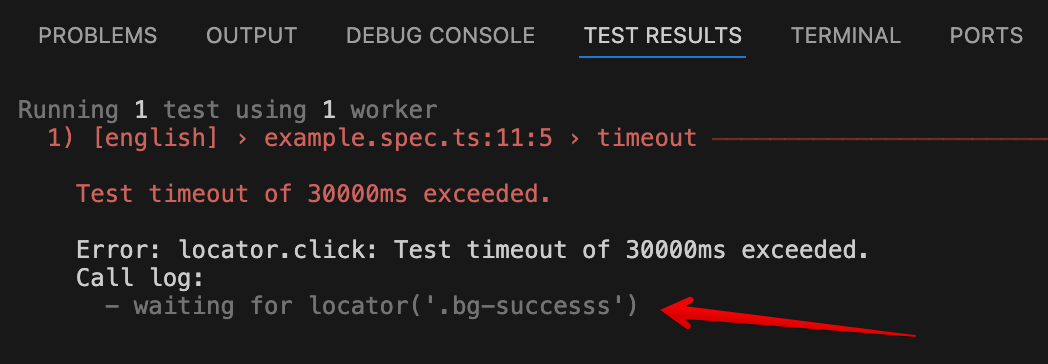
Incorrect locators can result from dynamic content, timing issues, or simply outdated selectors. If you run your test several times and it fails at the same point with a "timeout 30000ms exceeded" error on every re-run, most likely the problem is with the locator.
Examine the error message. It has a clue! A grayed-out text tells you where to look.
Here is an example of a timeout exceeded when the locator was not found:
3. Slow Backend Responses
If your application's backend is slow to respond, your tests may timeout.
This is often seen with API endpoints that have long processing times or database queries that take longer than expected.
In such cases, Playwright may timeout while waiting for the application to reach a testable state.
Strategies to Resolve Timeout Errors
Now that we understand the causes, let's look at some solutions:
1. Adjusting Timeout Duration
You can increase the timeout at various levels: framework level, hook level, and individual test level.
At the framework level, you can set a timeout for every test to be the same, and it's configured in the playwright.config.ts file.
import { defineConfig } from '@playwright/test';export default defineConfig({ timeout: 60000, // Sets a 60-second timeout for all tests});You can also set a timeout at the beforeAll/beforeEach hook for the particular test suite or for individual tests
import {test} from '@playwright/test';test.beforeEach( async ({ page }) => { test.setTimeout(40000) // Sets a 40-second timeout for all tests await page.goto('/')})test('hello', async ({ page }) => { //this test can run up to 40 seconds});test('world', async ({ page }) => { test.setTimeout(60000) // Sets a 60-second timeout only for this test});2. Optimizing Locators
Ensure your locators are accurate and efficient. Consider using user-facing locators instead of IDs, CSS, or other, more complex and less reliable selectors
Instead of:
await page.locator('button.submit-form').click();Use:
await page.getByRole('button', {name: "Submit"}).click();3. Mocking Slow Endpoints
For tests affected by slow and unstable backend responses, consider mocking these slow endpoints. This technique can significantly speed up tests by bypassing actual API calls.
await page.route('**/api/slow-endpoint', route => { route.fulfill({ status: 200, body: JSON.stringify({ data: 'mocked response' }) });});Best Practices for Handling Timeouts
Use specific timeouts: Instead of relying on the test timeout for everything, set specific timeouts for actions and navigations when necessary.
Configure the framework to have a separate timeout for CI/CD execution and the local environment
Do not set a too-long default timeout in the framework configuration. For slow or long end-to-end tests, configure a timeout at the test level
Use Locator Assertions instead of Generic Assertions. Use them for anything web-related. Locator assertions have their own timeout.
To learn more about Locator Assertions, check this blog post which explains them in detail.
Conclusion
The "timeout 30000ms exceeded" error, while frustrating, is often a symptom of underlying issues in your tests or application.
By understanding the various types of timeouts, identifying common causes, and implementing targeted solutions, you can create more robust and reliable Playwright tests.
Remember, increasing timeouts is often a band-aid solution. The goal should be to optimize your tests and application to perform within reasonable time frames.
With these strategies and best practices, you'll be well-equipped to tackle timeout issues and improve the overall quality of your Playwright test suite.
Want to use the Playwright framework like a pro? Check out the Playwright UI Testing Mastery program. It covers all necessary topics, including the timeouts and auto-waiting mechanism, so you will learn how to create efficient automation frameworks from scratch.