Playwright error messages are not always easy to read. Sometimes you stare at a failed test output, see a pile of locator chains and mismatched strings, and have no idea what actually went wrong.
Starting with version 1.51, Playwright introduced a feature called Copy as Prompt. It extracts the full context of a test failure and lets you paste it into any LLM, like Claude or ChatGPT, to get a clear explanation of what happened. Let's dive in.
What Is Playwright Copy as Prompt?
Copy as Prompt is a button in the Playwright HTML Reporter. When a test fails, you open the report, click the button, and it copies a structured prompt to your clipboard. You then paste that prompt into the AI tool of your choice.
No plugins, no configuration. It ships with Playwright out of the box starting from version 1.51.
The idea is simple. Playwright already has all the context about your failure, the error, the code, the test info. Why not package it in a way that AI can immediately understand?
What Gets Copied in the Prompt
Before you paste anything into an LLM, it helps to know what Playwright actually copies. The prompt has four parts:
AI instructions, a system-level message telling the AI to explain the failure, be concise, respect Playwright best practices, and provide code fix snippets if possible.
Test info, the test name, file path, and configuration details.
Error details, the full error message, including the assertion output with expected vs. received values.
Source code, the actual test code from your spec file.
Playwright doesn't just dump the error log. It gives the AI everything it needs to reason about the failure in context.
Example 1: Simple Assertion Mismatch
Let me show you a simple scenario first. We have a test that selects an owner by phone number on a PetClinic application and then validates that the phone number is displayed on the owner's information page.
Here's the test:
test('select owner by phone number', async ({ page }) => { await page.goto('/owners'); await page.getByRole('row', { name: '6085552765' }).getByRole('link').click(); await expect(page.locator('.ownerInfo')).toContainText('6085552768');});The test fails. The error message you get is something like this: a cold trace with locator chains, a string mismatch, and not much clarity on the actual problem.
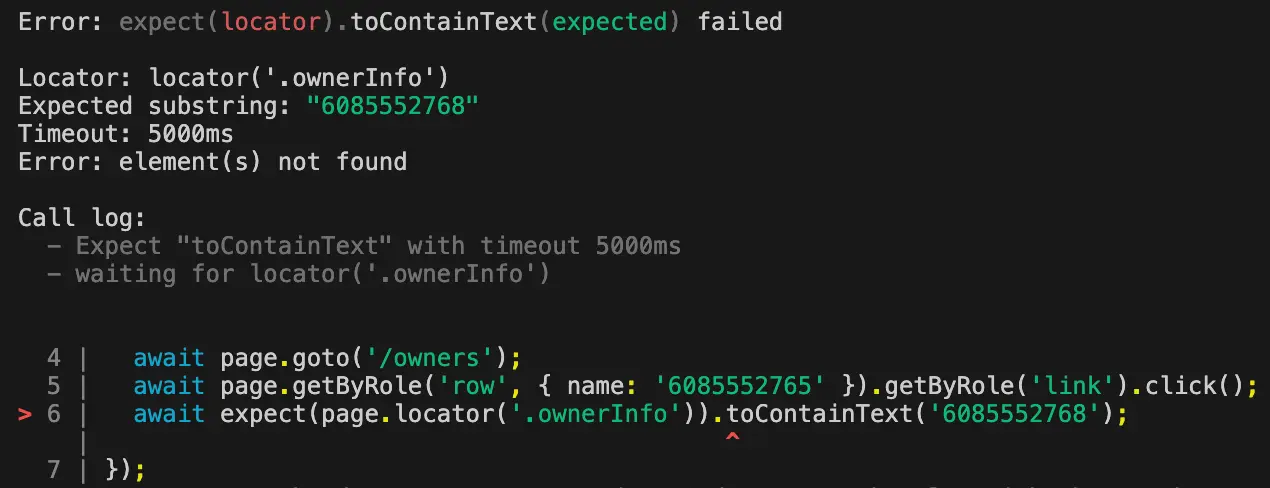
You can try to make sense of the error message yourself. Or you could open the Playwright Reporter, click Copy as Prompt, and paste it into Claude.
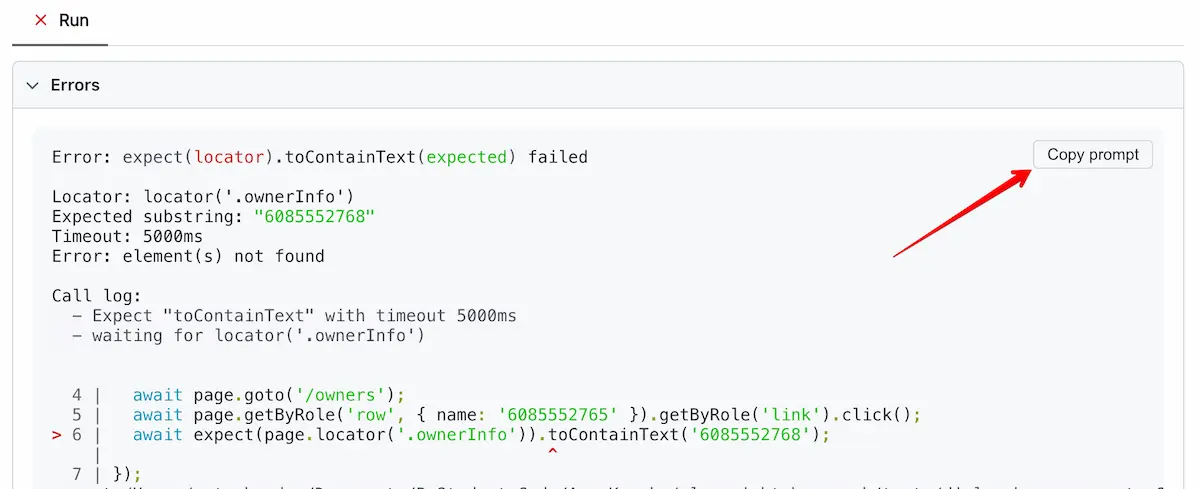
Here's what the AI comes back with:
The test selects the owner with phone number 6085552765, but the assertion expects 6085552768. The expected number doesn't match the owner's phone number.
The assertion value is simply wrong. A typo. The last digit should be 5, not 8.
If you've ever dealt with timeout errors caused by mismatched data, you know how frustrating it can be to debug manually. The AI spots it in seconds.
Fix the phone number, run the test again, green. Done.
Example 2: Complex Web Table Parsing Error
Now let's look at a trickier case. This test validates that the correct pets are listed for owners in the Madison city. It loops through table rows, extracts cell values, and compares them to an expected array.
test('validate pets of Madison city', async ({ page }) => { await page.goto('/owners'); const rows = page.getByRole('row').filter({ hasText: 'Madison' }); const petNames: string[] = []; for (let i = 0; i < await rows.count(); i++) { const cell = rows.nth(i).getByRole('cell').nth(2); const text = (await cell.innerText()).trim(); petNames.push(text); } expect(petNames).toEqual(['Leo', 'George', 'Mulligan']);});This test fails, too. And the error message? A total mess. You see an array diff with plus signs, minus signs, expected values, received values, and mysterious extra text showing up inside the array elements.
The error itself is completely confusing. So let's ask AI to explain it.
Paste the prompt into Claude. Here's the explanation:
The test is failing because the pet name cell contains additional text. Instead of just "Leo", the cell contains "Leo" followed by a newline and extra text. The
trim()method only removes leading and trailing whitespace, not internal newlines or additional text within the cell.
The AI identified that each table cell contains two values separated by a newline, not just one. The .trim() method won't help here because the extra text is inside the string, not at the edges.
How to fix? Split the text by newline and take only the first value:
const text = (await cell.innerText()).split('\n')[0].trim();petNames.push(text);Run the test again. Green.
This is the kind of bug where you could spend 20 minutes staring at array diffs trying to figure out what went wrong. The AI explained it in 10 seconds.
AI Explanation vs. AI Fix: Know the Difference
Here's the most important takeaway about the Playwright copy as a prompt feature.
The explanation is almost always accurate. The suggested fix is not always the best approach.
In my experience, the AI gets the "why" right about 99% of the time. It correctly identifies the root cause of the failure. But the code fix it suggests? Sometimes it doesn't follow Playwright best practices. Sometimes it's not the optimal solution for your specific test scenario.
Use the AI to understand the failure. Then decide how to fix it yourself based on your application's context.
Why?
Because the AI doesn't know your full test architecture. It doesn't know your page object model, helper functions, or team conventions. It sees one test in isolation. The explanation is useful no matter what. The fix is a suggestion, not a prescription.
TIP: Use Copy as Prompt to diagnose the issue. Then apply the fix that makes sense for your codebase, even if it differs from the AI's suggestion.
Where to Find the Copy as Prompt Button
The Copy as Prompt button is available in three places.
The most common one is the HTML Reporter. Run your tests, open the HTML report, click on a failed test, and you'll see the button right there.
To open the HTML report:
npx playwright show-reportYou can also find it in the Trace Viewer. If you have traces enabled, open the trace for a failed test. The button is there as well, and traces provide an even richer context, including screenshots and action logs.
And finally, UI Mode. When running tests with npx playwright test --ui, failed tests show the Copy as Prompt button directly in the interface.
All three give you the same structured prompt. Pick whichever fits your workflow.
Getting the Most Out of Copy as Prompt
The prompt is plain text, so Claude, ChatGPT, Gemini, whatever you prefer, will work fine.
One thing I want to stress: don't blindly copy-paste the fix suggestions. Read the explanation first. Understand the root cause. Then write the fix yourself or adapt the suggestion. You will write better tests this way.
For complex failures involving multiple steps, network requests, or element-waiting issues, combine Copy as Prompt with traces. The screenshots and action timelines help you see the full picture alongside the AI explanation.
And if you're just getting started with Playwright, this feature doubles as a learning tool. Paste the prompt, read the explanation, and you'll understand how assertions work faster than reading raw error logs.
When Copy as Prompt Won't Help
This feature won't solve everything. I want to be clear about that.
If your test fails due to flaky infrastructure, timing issues, or environment-specific problems, the AI won't know that. It only sees the error message and code. It can't see your CI/CD pipeline, your network conditions, or your test data setup.
For flaky tests, you still need to investigate the environment. But for assertion mismatches, wrong locators, and logic errors in your test code? This is where Copy as Prompt really shines.
Final Thoughts
Copy as Prompt sounds like a small addition, but it changes how you debug tests. Playwright error messages for complex assertions with arrays, objects, or nested locators can be really hard to parse on your own.
This feature gives you a shortcut. Click a button, paste into an AI, and get an explanation in plain English. In my experience, the root cause identification is spot on.
Use it to understand why the test fails. Make the fix yourself. That's the winning formula :)
Microsoft Playwright is gaining popularity rapidly and will soon become a mainstream framework. Get the new skills at Bondar Academy with the Playwright UI Testing Mastery program. Start from scratch and become an expert to increase your value on the market!
Frequently Asked Questions
What version of Playwright introduced Copy as Prompt?
Copy as Prompt was introduced in Playwright 1.51. Make sure you're on this version or later to use the feature.
Does Playwright Copy as Prompt work with any AI tool?
Yes. The copied prompt is plain text. You can paste it into Claude, ChatGPT, Gemini, Copilot, or any other LLM. It's not tied to a specific provider.
Where can I find the Copy as Prompt button?
It appears in three places: the HTML Reporter, the Trace Viewer, and UI Mode. Open any of these after a test failure, then look for the button in the failed test details.
Are the AI-suggested fixes always correct?
The error explanations are about 99% accurate. The code fixes are suggestions. They may not follow best practices or fit your specific test architecture. Always review before applying.
Does Copy as Prompt send my code to Playwright's servers?
No. It copies text to your clipboard. Nothing is sent anywhere. You choose where to paste it and which AI tool to use.